

Launchpad left.
We moved in.

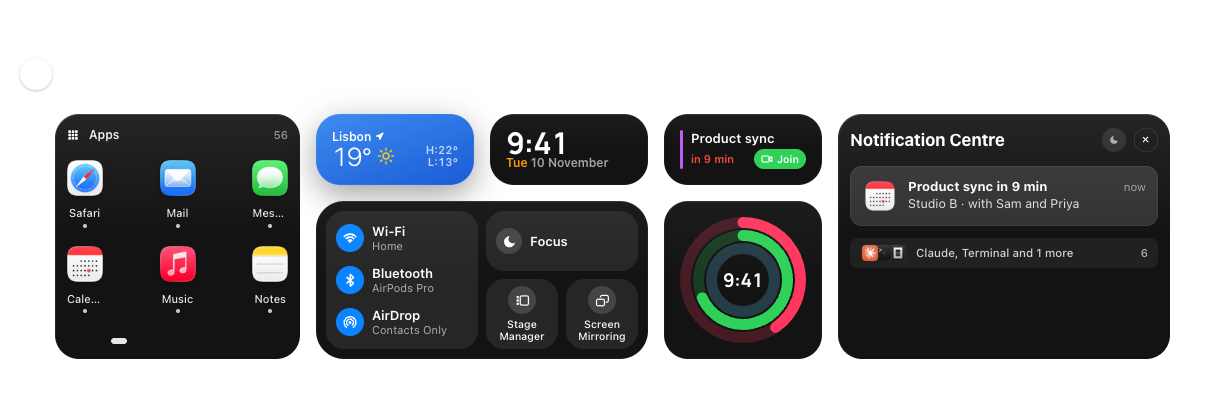
One sheet from the top or the bottom of your screen, with your apps, widgets, Control Centre and notifications.

Get notified $29 once or $12 a year
Hyperlaunch’s sheet comes down from the top of the screen at Half, then grows to ¾ and Full as you scroll. Live · Tab, then typeLive · tap to search

The sheet holds six layouts, search, Control Centre and Hyper Widgets.

Six layouts

Each opens at the size and from the edge it suits. Switch from the layout chip, or with ⌥⌘ and a number.
Command centre¾ · from the top
Launchpad, plusFull
ControlHalf · from the top
DashboardHalf · from the top
Ask¾ · from the bottom
WorkbenchFull

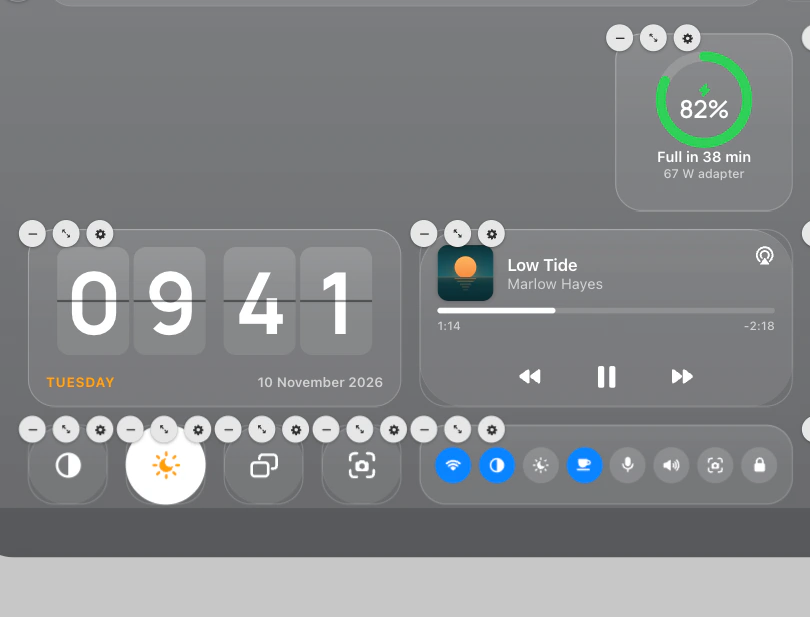
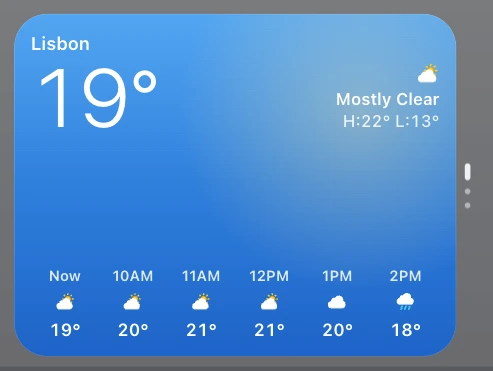
Dashboard Half · from the top

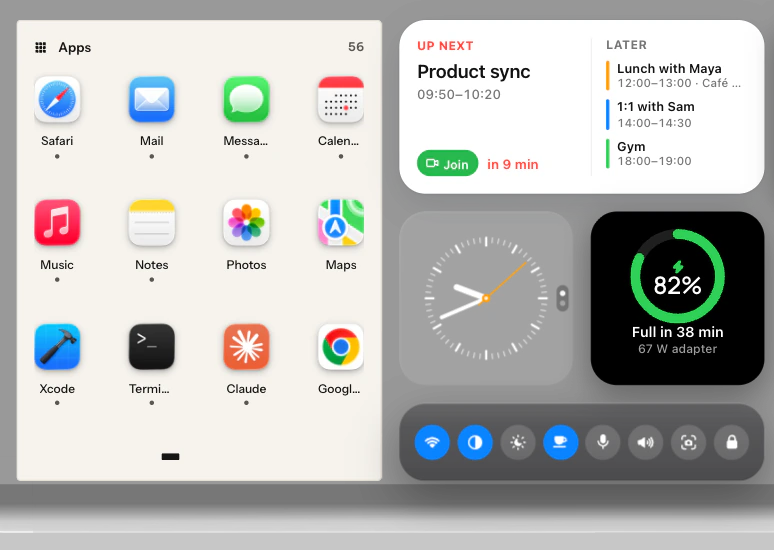
Today as a smart stack: the weather, what’s next and your batteries take turns, with widgets beside it.
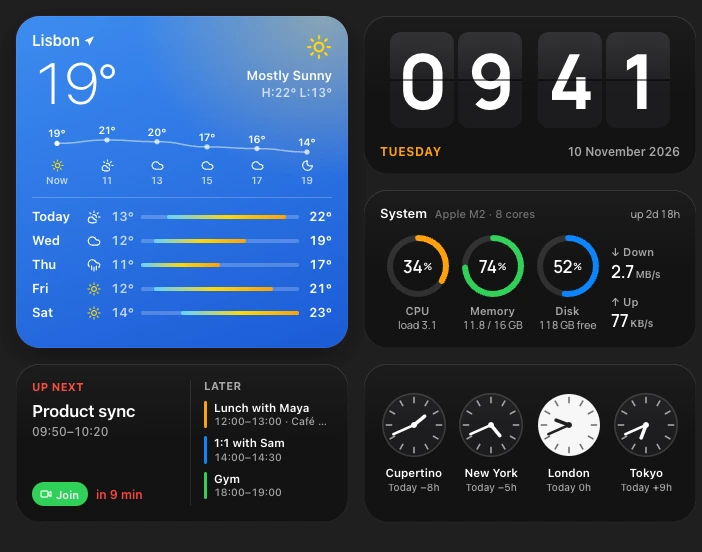
Hyper Widgets, at their own size

115 come with Hyperlaunch, each at its exact design size on the one grid, never stretched.
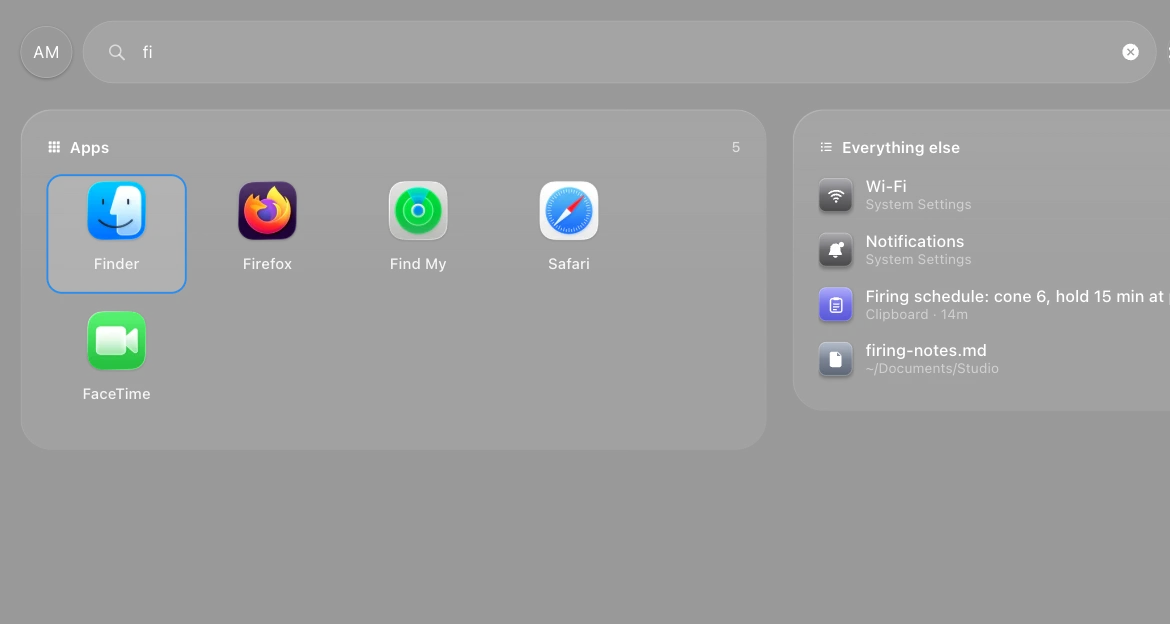
Control Centre, in colour

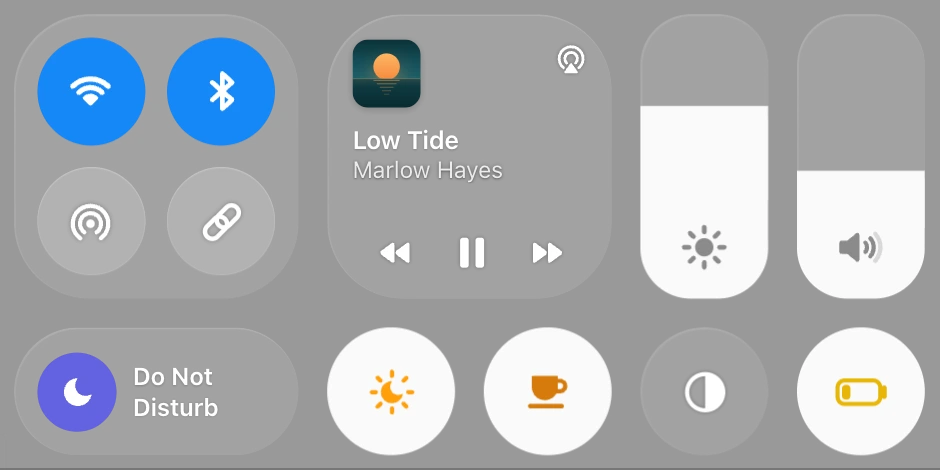
Wi-Fi, Bluetooth and AirDrop, tall sliders, Now Playing from any app, and one-tap controls that light up.

Every day: your apps, your day and every way in.

Your apps, as Launchpad had them

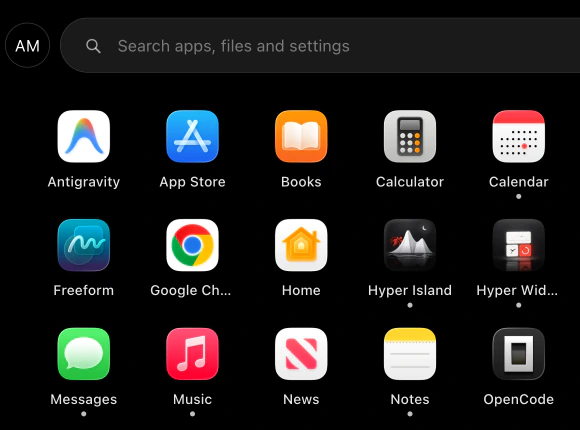
Every app on your Mac, in Launchpad’s grid of big icons. Type, and the ones you open most come first.

Press it again for apps only

⌃⌥⌘↓ brings the sheet down. Press it again for your apps alone, edge to edge; a third time closes it.
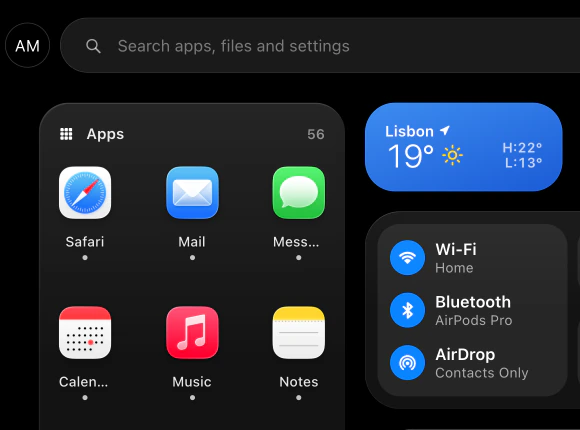
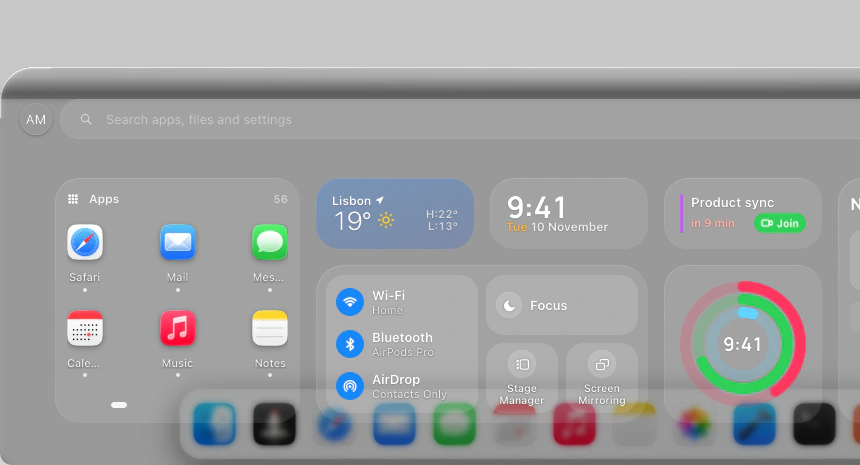
Once: the sheet at three-quarters from the top, with the search field, the Apps card, the weather and Wi-Fi, Bluetooth and AirDrop.
Once The sheet
Twice: the same sheet with every app in a grid, from edge to edge, and nothing else.
Twice Apps only

Up from the bottom

⌃⌥⌘↑ raises the same sheet from the bottom of the screen, over the Dock.
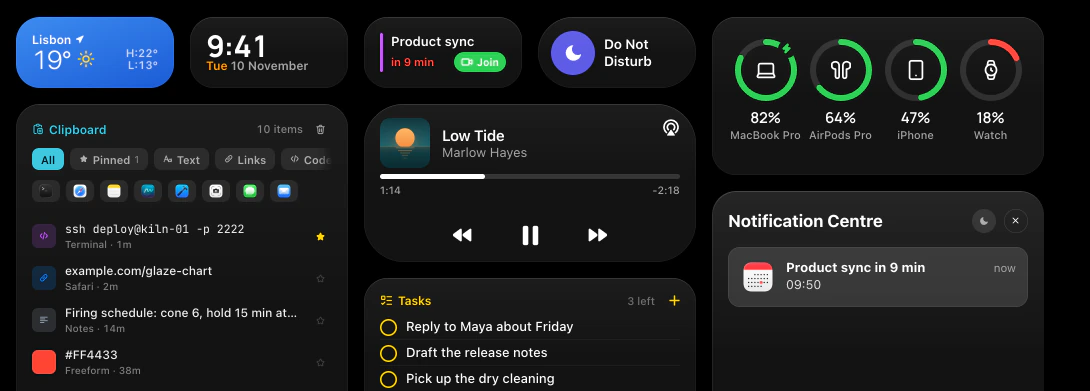
Command centre in Dark & Sleek: the weather, the time, the next meeting with a Join button, Do Not Disturb and your devices’ batteries along the top; below them the clipboard’s last copies, what’s playing, today’s tasks, and the Notification Centre with a meeting in ten minutes.

Your day on one sheet

The weather, your next meeting, what’s playing, today’s tasks and everything you copied, as Command centre lays them out.

Or open it from the Dock, the menu bar, a key or a link

  • Its Dock icon

    Opens your default size and edge, as Launchpad’s did; right-click it for a layout.

  • Its menu-bar icon

    A click opens or closes it; right-click for a layout, Settings and Quit.

  • Launchpad’s key

    F4 with Launchpad’s glyph, once you turn it on in Settings › General. It asks for Accessibility then.

  • A link

    For hot corners, Shortcuts and scripts: any size, edge and layout.

Make it yours. Move, size and restyle every card, down to the icons.

Drag a card anywhere

Drop it anywhere and it stays. The cards it lands on move to where it was; nothing else moves.

Edit mode runs here when JavaScript is on.

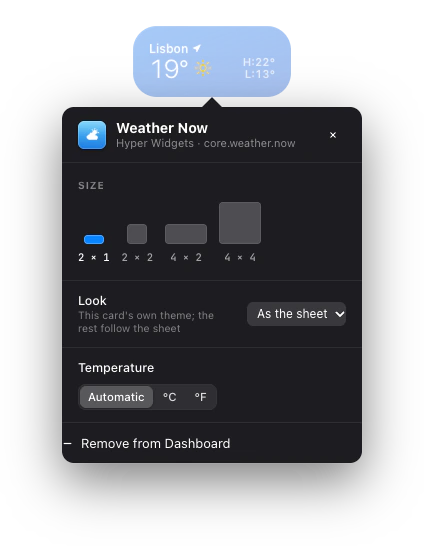
Weather Now’s settings, open under its card: four sizes from 2 × 1 to 4 × 4, its look (As the sheet) and the temperature (Automatic, °C or °F).

Every card, its own settings

Double-click a card, or right-click a widget: its size, its look, and options such as °C or °F.

Add from the gallery

Hyperlaunch’s own pieces and the library’s widgets, each previewed at its true size. Drag one onto the sheet.

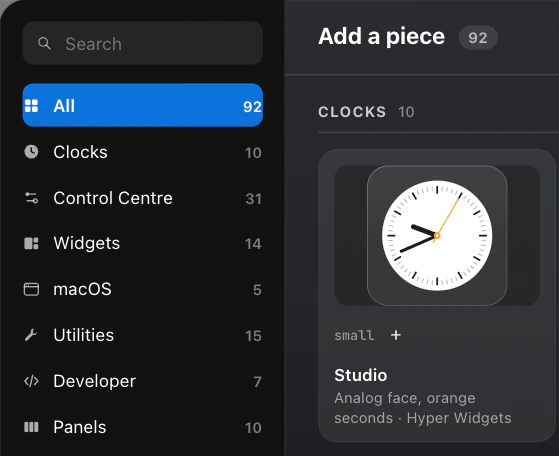
The gallery, Add a piece, open over the sheet: its groups (Clocks, Control Centre, Widgets, macOS, Utilities, Developer, Panels), each with its count, and the Studio clock drawn at its own size.

Three surfaces

The same sheet in each: Liquid Glass on macOS 26, Frosted Glass, or Dark & Sleek’s pure black.

One sheet cut into thirds over the lake, each in a surface of its own: Liquid Glass on the left shows the mountains through it, with a bright lens along its free edge; Frosted Glass in the middle blurs them to milk; Dark & Sleek on the right is black.

Liquid Glass Clear glass, with a lens along its free edge. On macOS 26.

Frosted Glass Milky glass: what’s behind it blurs away.

Dark & Sleek Pure black, like the notch.

A look for every card, and stacks

Dark, Light, Frosted, Liquid, Paper or Ink, per card. Widgets of a size stack when you hold one over another.

Cards each in a look of their own on a Liquid Glass sheet: the apps on Frustrated Labs’ Paper, Up Next in Light, the batteries in Dark, Control Centre in Frosted, and a clock that is a stack of two widgets, its page dots at its right edge.

macOS 26’s icon styles

Default or Dark, or Clear and Tinted in a light or dark shade, per card, as the Dock draws them.

  • Passwords, Phone and Photo Booth in the Default style.
    Default
  • The same three in Clear, light: pale glass, the glyphs in one ink.
    Clear, light
  • The same three in Tinted, light: blue, the glyphs in white.
    Tinted, light
  • The same three in the Dark style: their own colours on dark.
    Dark
  • The same three in Clear, dark: dark glass, the glyphs in white.
    Clear, dark
  • The same three in Tinted, dark: blue glyphs on dark.
    Tinted, dark

For developers: Workbench, Ask and your assistant’s widgets.

Every layout opens from a link too, for Shortcuts, scripts and hot corners: hyperlaunch://open?layout=work&size=full

Workbench Full

Your coding agents’ limits, usage and alerts, read from HyperTrail, beside the developer apps you use.

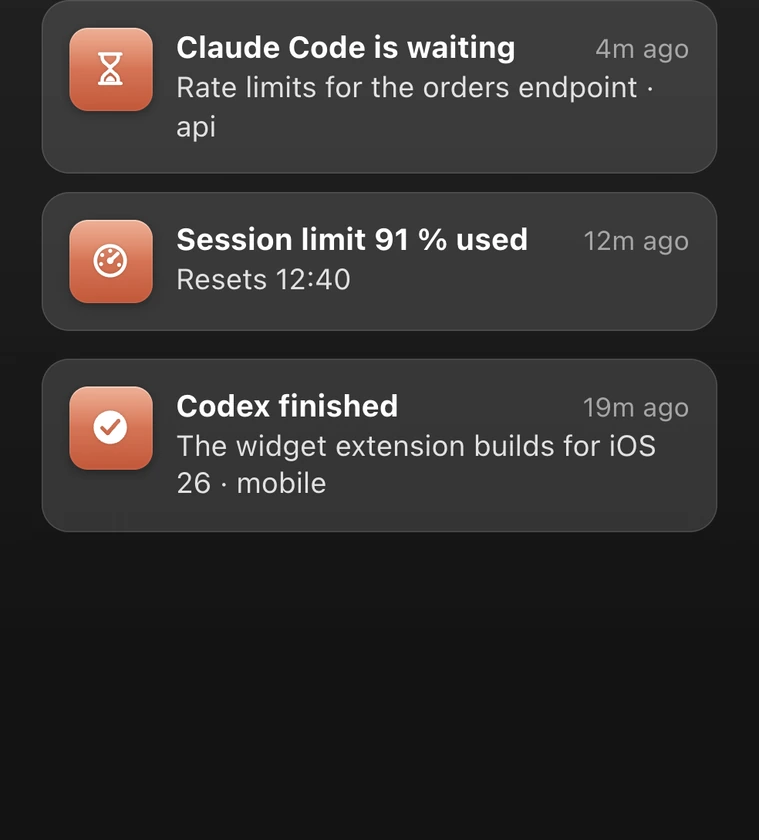
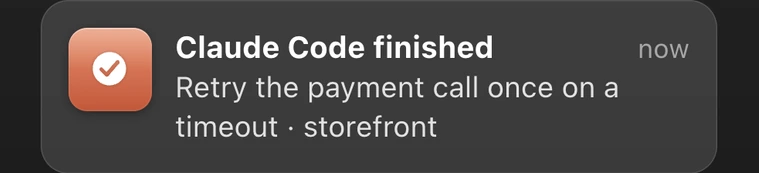
Hyperlaunch’s Workbench at Full, on Dark & Sleek: the Workbench layout chip; Plan limits; Agent usage, $12.40 today; the developer apps; and the Notification Centre, where “Claude Code finished: Retry the payment call once on a timeout, storefront” arrives above “Claude Code is waiting” and a session limit 91 % used.

Terminal, servers, Git and containers

Commands of 10 s or more, the ports you listen on, your branch and containers, live while it’s open.

Workbench’s developer cards: Claude Code’s sessions in storefront, api and mobile; the Terminal’s last long commands, one failed; local servers on ports 3000, 5173 and 8080; the clipboard’s code, links and paths; CPU, memory and disk; and the storefront branch, two commits ahead.

Widgets your coding assistant makes

Ask Claude Code, Cursor or Codex for one. With Hyper Island, once you allow it, Add widget lists it.

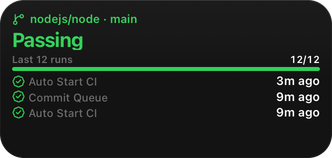
A Node.js CI widget: nodejs/node on main, Passing, the last 12 runs green, the newest three minutes ago.
“Watch Node.js’s CI on main and tell me when a run fails.”
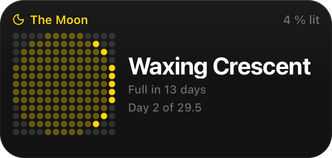
A Moon widget drawn in dots: Waxing Crescent, 4 % lit, full in 13 days.
“The Moon tonight, drawn in dots.”
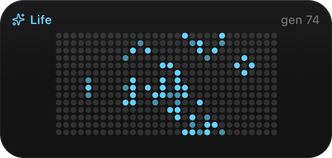
A Game of Life widget in blue dots, at generation 74.
“Conway’s Game of Life, only while I’m looking.”
Hyperlaunch’s Ask, ¾ from the bottom: Context with the clipboard switched on, holding “Error: DATABASE_URL is not defined”; the question “Why does pnpm test fail with this error?” with a line under it saying the clipboard went with it; and the answer: DATABASE_URL isn’t set where the test runner starts, with the two lines that fix it.

Only what you switch on goes with it

Every answer says what was sent

Press Tab to ask

Tab turns what you typed into a question for Claude, on your own Anthropic key, kept in your Keychain.

Everything in Hyperlaunch. Every key, layout, card and setting.

What’s off until you turn it on, or needs another app, says so beside it.

Opening it, 11 features

From the top
⌃⌥⌘↓ pulls the sheet down. The notch and the menu bar stay clear above it.
Up from the bottom
⌃⌥⌘↑ raises the same sheet from the bottom of the screen, over the Dock.
Again for your apps
Press the same key again for your apps alone; a third time closes it.
The Launchpad key Off by default
F4’s Launchpad key, or the Touch Bar’s button, opens your default size and edge. It asks for Accessibility when you turn it on.
Its Dock icon
A click opens your default size and edge, as Launchpad’s did; right-click it for a layout.
Its menu-bar icon
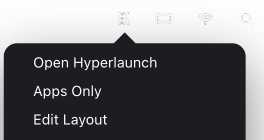
Click to open or close; right-click for a layout or Settings. Hide the Dock icon and it lives here.
A link for hot corners
hyperlaunch://open with a size, an edge and a layout, for hot corners, Shortcuts and scripts.
Where your pointer is
With more than one display, it opens on the screen your pointer is on.
Esc, or a click outside
Either closes it. Esc first leaves a search, the gallery or edit mode.
Open at login Off by default
One switch in Settings starts it with your Mac.
Menus and ⌘ keys
⌘, opens Settings, ⌘E edit mode, and ⌥⌘ with a number picks a layout.

Your apps, 9 features

Every app, in pages
Everything in your Applications folders, in Launchpad’s pages, kept current as apps arrive.
Pages you swipe
Two fingers or a mouse wheel turn the pages; the dots show where you are.
Apps only, the whole sheet
The sheet as Launchpad was, with its own grid, icon size and names.
App Library folders
Apps sorted by kind: three large and four small, as the App Library draws them.
A Dock row
Your most-used apps on a shelf of glass.
Recently added
The newest apps in Applications, with when each one arrived.
Right-click, or drag out
Open an app, show it in Finder or quit it, or drag it to the Dock. A dot marks what’s running.
Names, size and grid
Hide the names, size icons from −16 to +24 pt, or pick a grid from 3 × 3 to 8 × 5.
macOS 26’s icon styles macOS 26
Default, Dark, Clear or Tinted, with a shade and a tint, drawn as the Dock draws them.

Layouts and sizes, 9 features

Command centre
¾ from the top: apps, a glance row, the full clipboard, Now Playing, tasks and notifications.
Launchpad, plus
Full: big icons in pages with folders, Control Centre and notifications on a rail.
Control
Half from the top: connectivity, Now Playing, tall sliders and round controls.
Dashboard
Half from the top: today as a stack, weather, batteries, a timer, habits and a control strip.
Half, ¾ or Full
Three sizes, from the top or the bottom; each layout keeps its own pieces at each.
Pinch to resize Uses Accessibility
Pinch the open sheet apart for bigger, together for smaller.
Swipe between layouts
Two fingers sideways bring in the next layout, with its name and dots.
The layout chip
Switch layout, size, edge, search bar and surface from the sheet itself.
One grid, every Hyper app
71-pt cells and 16-pt gaps, the grid Hyper Widgets uses, as many as fit your screen.

Widgets and cards, 8 features

Hyper Widgets on the sheet
The family’s widget library, each widget at its exact design size, never stretched.
115 widgets included
They come with Hyperlaunch. Starter and Pro add more, up to all 713.
Control Centre, Native
Its pieces in macOS 26’s and iOS 26’s own look, with the Colors look beside them.
Stacks, as on iPhone
Hold a small or medium widget over another of its size to stack them; scroll to flip.
Smart Rotate
A stack turns to its next widget every few minutes, never while your pointer is on it.
The full clipboard
Your history as a card: filter by kind or by app, search, pin, and drag a copy into any app.
Live from your Mac
Widgets read your Mac through Hyper Data, the helper that comes with Hyper Widgets.
Samples, labelled Off by default
A piece without its source says what’s missing; Show samples fills it with data marked SAMPLE.

Pieces for your day, 8 features

Eight clocks
Studio by day and by night, Flip, Float, Words, Rings, World and Digital.
Weather, no account
Now, the next hours and five days for the city you set, in °C or °F.
Up Next
Today from your calendars, and on wide sizes what’s later in a second column.
Tasks and habits
To-dos to tick off today, and habit rings that close toward a daily goal, with streaks.
Focus timer
A ring that winds down; the sheet’s notifications say when it’s done.
Batteries and system
Your Mac’s and your Bluetooth devices’ batteries, with CPU and memory.
Apple’s widgets, redrawn
Reminders, Calendar, World Clock, Photos and Contacts, drawn by Hyperlaunch itself.
Its own Notification Centre
Hyperlaunch’s alerts, stacked by app: an event in ten minutes, a job done, a download finished.

Control Centre and your Mac, 9 features

Wi-Fi, Bluetooth, AirDrop
And Hotspot: each does the real thing where macOS lets it, else opens its pane.
Brightness and volume
Tall or wide sliders for the display and the sound.
Now Playing, any app
Music, Spotify, a browser or Podcasts, with AirPlay, and no prompt to control Music.
One-tap controls
Dark Mode, Night Shift, Keep Awake, Screen Mirroring, Screenshot, Lock, Mic Mute and Low Power.
Focus, by a Shortcut
macOS lets no app set Focus, so the control runs your “Hyperlaunch Focus” Shortcut, or opens Settings.
Control Centre, any shape
A panel, a column, a strip along the foot, or iOS’s grid of platters.
Sound output, displays
Switch between speakers, AirPods and AirPlay; set each screen’s brightness.
Running apps
Each app’s memory, with Hide and Quit beside it.
Lock or log out
Your picture in the corner opens Lock Screen, Log Out and Users & Groups.

Utilities, 11 features

A shelf for files
Drop files to hold them, then drag them out to where they’re going.
Today’s screenshots
Today’s captures, ready to drag into a message or a document.
Downloads
What’s downloading, and the newest files to open or drag out.
Colour picker
Pick any pixel on the screen and copy its HEX; the last eight stay.
Calculator
Apple’s keys in miniature; your keyboard types into it.
Convert
Length, weight, temperature, volume, data and time, side by side.
Notes
A scratchpad that stays between opens, in the text size you pick.
Translate, on this Mac macOS 15
Apple’s own translation, done on the Mac; type into the card.
Quick links
The sites and folders you open every day, a click each.
Your Shortcuts
Your Apple Shortcuts in a card; a click runs one.
Wallpaper, shuffled or picked
The card grows into a picker: the Mac’s pictures, its colours or a folder of yours.

Looks, 7 features

Three surfaces Liquid: macOS 26
Dark & Sleek’s pure black, Frosted Glass, or macOS 26’s Liquid Glass.
A look for every card
As the sheet, or Dark, Light, Light Blur, Frosted, Liquid, Paper or Ink, card by card.
Paper and Ink
Frustrated Labs’ own two looks, with typefaces of their own.
Your accent colour
Selections and lit controls wear the accent you chose in System Settings.
Less transparency, more contrast
With Reduce Transparency or Increase Contrast on, the glass turns solid and greys read stronger.
Reduce Motion
The slide becomes a fade, and nothing builds in.
Behind the sheet
Behind Half and ¾: nothing, a dim, a blur, or both. Full shows your wallpaper, blurred.

Editing, 9 features

Edit mode
The sliders button sets the cards jiggling, as on an iPhone; ⌘E does too.
Drop a card anywhere
It stays where you drop it; the ones in its way move aside, and two of a size swap.
Resize from the corner
The corner badge steps through a card’s sizes; what it covers moves aside.
The gallery
Hyperlaunch’s 71 pieces and the library’s widgets, each previewed at its true size.
Free, Starter or Pro
Gallery tiles say which tier a widget is in; a locked one can’t be added.
Settings on every card
Double-click a card, or right-click a widget: its size, its look and what it reads.
Each layout, each size
Every layout keeps its own arrangement at Half, ¾ and Full once you edit it.
Reset, or bring back
Reset an edited layout, or bring back how your layouts were before each big change.
The spacing, shown
Show Spacing lays the real point values over the sheet.

For developers, 10 features

Workbench
Full: agents’ sessions, terminal jobs, servers and code clips, with limits, usage and dev apps.
Agents’ sessions With HyperTrail
What your coding agents are doing and which wait for you; Answer it opens HyperTrail.
Plan limits and usage With HyperTrail
Session and weekly windows, used or left, and 14 days of tokens and cost.
Agent alerts With HyperTrail
An agent waiting or done, or a limit 90 % used, lands in the sheet’s notifications.
Terminal jobs
Commands of 10 s or more, done or failed, from a zsh hook the card copies for you.
Local servers
The ports you’re listening on, by kind; stop one of yours with a click.
Git at a glance
One repository’s branch, how far ahead or behind, and what’s changed.
Containers
Docker Desktop, OrbStack or Colima: what’s up, what’s exited; restart or stop one.
Code in the clipboard
Copies sorted by kind: code, JSON, links, colours and paths, each in its own colour.
Made by Assistants With Hyper Island
Widgets your coding assistant made with Hyper Island, in Add widget and live.

Ask, 6 features

Tab to ask
Tab turns what you typed into a question for Claude; the answer takes the grid’s place.
Answers, set as they stream
Headings, lists, tables and code with a copy button, formatted as the words arrive.
Only what you switch on
A file you drop in, or the clipboard, each a switch, with its size before it goes.
What was sent
Every answer ends with a line saying exactly what went with it.
Your own key
An Anthropic API key kept in your Keychain; Claude Opus, Sonnet or Haiku 5.5.
The Ask layout
¾ from the bottom: what it can see, the conversation, sources, and the field at the foot.

How it runs. What it does on your Mac, and what leaves it.

On your Mac

Ready before you press.
The sheet and its views are made at launch and kept hidden, so opening moves what’s already there.
One clock, only while it’s open.
One clock drives every live piece, once a second, and stops when the sheet closes. Closed, only the clipboard check runs: one number, read twice a second.
Blurred once, as Launchpad did.
Full blurs your wallpaper once each time it opens; Half and ¾ use the system’s own blur.
Over everything, then out of the way.
It opens over full-screen apps and stays put while Spaces slide; the app you were in gets the keyboard back.
Asks on a button, never on open.
⌃⌥⌘↓ and ⌃⌥⌘↑ need no permission. A piece asks for what it needs when you press its button.
Nothing changed system-wide.
The Launchpad key is taken only while Hyperlaunch runs. Quit it, and the key opens Apps again.
Your clipboard stays here.
Up to 200 copies and your pins, in a file only your account can read. Password managers’ copies are skipped.

What leaves it

The weather.
The place you set, to Open-Meteo, at most every 15 minutes while a weather piece is open. No account, and not your location.
Ask, when you ask.
Your question and what you switched on, to Anthropic, on your own key. The answer says what went.
Once it’s on sale.
A weekly licence check, and an update check you can switch off.
Nothing else.
No analytics, telemetry or tracking. The privacy policy lists every request.

Pay once. Or by the year.

Nothing is on sale yet: leave your email and we’ll write once, when it is. There’s no free tier and no trial. If it isn’t for you, a full refund within 14 days, no questions.

Hyperlaunch Lifetime

$29once

Pay once. Every update.

  • Every layout, piece and look
  • The 115 included Hyper Widgets
  • Every update
Get notified

14-day refund, no questions

Hyperlaunch Yearly

$12a year

Works while it’s paid, plus a week’s grace.

  • Every layout, piece and look
  • The 115 included Hyper Widgets
  • Every update while it’s paid
Get notified

14-day refund, no questions

Hyper Family

$99once, for the first 300

Then $149 once, or $39 a year.

  • Hyperlaunch, Hyper Island, HyperTrail and Hyper Widgets
  • Widgets Pro: all 713 widgets
  • The apps we release in the next two years
Get notified

14-day refund, no questions

One licence for every Hyper app: the widgets you unlock in one show in all of them. Paddle, our reseller, takes the payment and adds any sales tax or VAT; we never see your card. Prices in US dollars. macOS 14 Sonoma or later. Hyper Family’s founders’ price is for the first 300 buyers and covers the apps we release within two years.

Questions, answered.

Anything else? Email us and a person will reply.

Which Macs does it run on?

macOS 14 Sonoma or later. It was made for macOS 26, where Launchpad is gone: Liquid Glass and the icon styles need macOS 26, and Translate needs macOS 15. The rest works the same on every version.

Does it use the Launchpad key?

There’s a setting for it: Open with the Launchpad key, in Settings › General. It’s off until you turn it on, and macOS asks you to allow Accessibility when you do. Then F4’s Launchpad key, or the Touch Bar’s Launchpad button, opens your default size and edge, and pressing it again closes the sheet. Nothing system-wide changes: quit Hyperlaunch and the key opens Apps again.

Without it, Hyperlaunch opens on ⌃⌥⌘↓ from the top and ⌃⌥⌘↑ from the bottom, from its Dock and menu-bar icons, and from hot corners, Shortcuts and scripts through hyperlaunch://open.

What does it ask permission for, and when?

Only what a piece needs, and only when you press that piece’s button: your calendars when you allow the calendar piece, for example. Nothing is asked when the sheet opens. The one setting that asks is Open with the Launchpad key, for Accessibility; a trackpad pinch on the sheet uses Accessibility only if you’ve already allowed it.

Can it show my Mac’s widgets and notifications?

Not the ones other apps make: macOS lets no app host other apps’ widgets or read their notifications. Hyperlaunch draws its own Reminders, Calendar, World Clock, Photos and Contacts, puts Hyper Widgets’ library on the sheet, and keeps a Notification Centre of its own for what it sees: an event in ten minutes, a terminal job done, the timer, a download, and your coding agents through HyperTrail.

What does SAMPLE mean on a piece?

The piece’s source isn’t connected, so it shows made-up data to show you its design. Samples are off until you turn them on in Settings, and a sample is always labelled. With them off, a piece says what’s missing and offers the one button that fixes it.

Does it work with Hyper Island, Hyper Widgets and HyperTrail?

Yes. Hyperlaunch draws Hyper Widgets’ library on its sheet at each widget’s own size, and what you unlock in one Hyper app works in all of them. Coming from the top, the sheet leaves the notch and the menu bar clear, so Hyper Island stays where it is. With HyperTrail, your coding agents’ sessions and plan limits show on the sheet.

What does Ask send, and to whom?

Nothing until you ask. Then your question, and anything you switch on to go with it, goes to Anthropic’s API on your own key, which stays in your Mac’s Keychain, and the answer ends with a line that says exactly what was sent.

Does it need the internet?

For the weather, from Open-Meteo for the place you set, for Ask when you use it, and once it’s on sale for the weekly licence check and the update check. Everything else is read on your Mac. The privacy policy lists every request.

Will it slow my Mac down?

Closed, only the clipboard check runs: one number, read twice a second. Open, one clock drives every live piece once a second, and a piece reads its source only while it’s on the sheet. Its views are made when it starts, so opening moves what’s already there instead of building it.

Is there a free trial?

No. You pay first, and if it isn’t for you, you get a full refund within 14 days, no questions. See the refund policy.

What’s the difference between Lifetime and Yearly?

Only how you pay. Both are the whole app. Lifetime is $29 once, with every update. Yearly is $12 a year and works while it’s paid, plus a week’s grace.

When can I buy it?

February 2027. Leave your email and we’ll write once, when it’s out. Checkout will be through Paddle, our reseller, which adds any sales tax or VAT before you pay.
Hyperlaunch. Coming February 2027.

$29 once or $12 a year · 14-day refund, no questions · macOS 14 Sonoma or later